Job hunting is already a full-time job 😮💨. And then there’s that other job: keeping your application spreadsheet updated after every single submission. Copy the company name, switch tabs, paste. Copy the role, switch tabs, paste. Copy the link… you get it.
Honestly? That’s the part I kept forgetting. So I built a little helper for it.
Job Application Logger is a Chrome extension that reads the job details from your browser and drops them straight into a Google Sheet. Less tab-juggling, more applying 🙌.
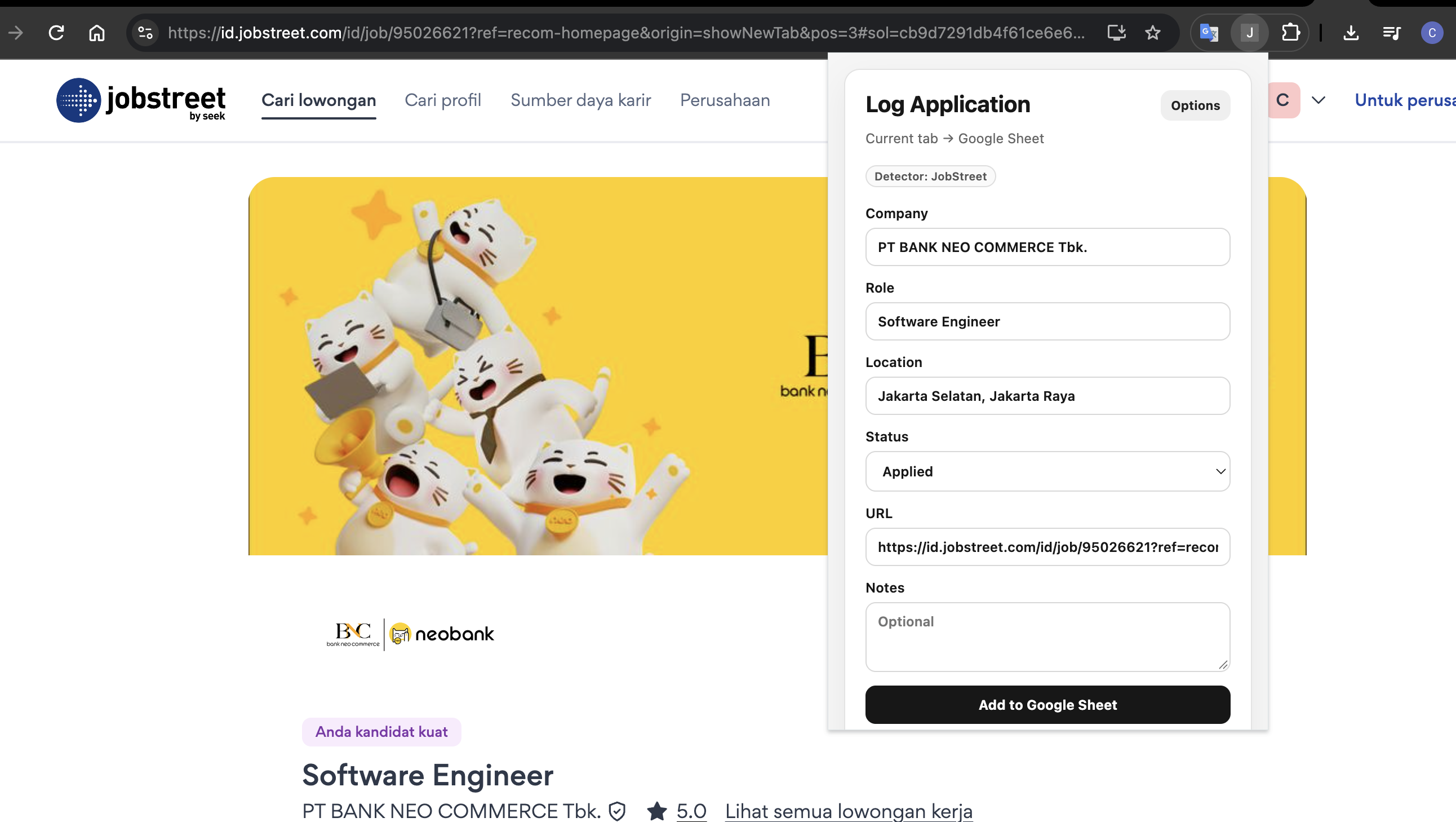
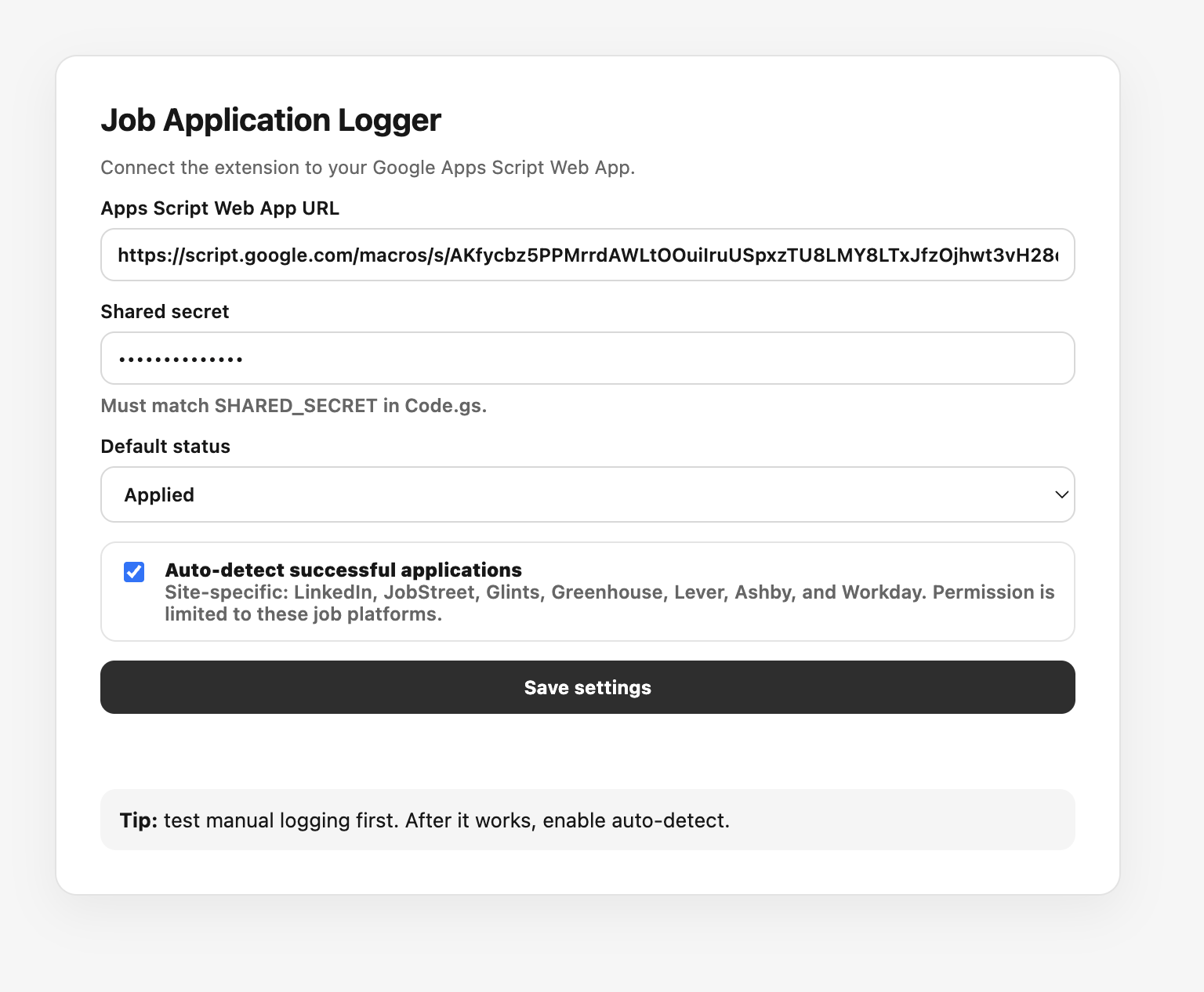
🔀 Two Ways to Log an Application
| One-click logging | Auto-detect | |
|---|---|---|
| How it starts | Open the extension on a job page and click Add to Google Sheet. | The extension spots a submission confirmation. |
| Where it works | Regular job pages, including sites outside the supported list. | Supported job platforms only. |
| Before saving | Review or edit the details, status, and notes. | Saves the detected details automatically. |
| Best for | Staying in control of every entry. | Reducing repetitive steps after applying. |
Auto-detect works on LinkedIn, JobStreet, Glints, Greenhouse, Lever, Ashby, and Workday (JobStreet across six regional sites, from Indonesia to Thailand). It’s optional and off by default, because I don’t like surprise automation either 😄.
🗺️ From Job Page to Spreadsheet
flowchart LR
    A[Job page] --> B[Read job details]
    B --> C{Logging mode}
    C -->|One click| D[Review and save]
    C -->|Auto-detect| E[Spot submission confirmation]
    D --> F[Google Apps Script]
    E --> F
    F --> G[(Google Sheet)]
The extension hunts for the company, role, location, and job URL. It tries three approaches, in order:
- Structured job data (
JobPostingJSON-LD), when the page has it. The best case! - Site-specific page elements for the supported platforms.
- General page details as a last resort.
For auto-logging, it keeps an eye out for messages like “Thank you for applying” or “Your application has been submitted.” Lots of job sites are single-page apps that swap content without reloading, so the extension uses a MutationObserver to notice when that confirmation message actually shows up.
A couple of smart little touches:
- The confirmation page forgot the job? No problem. If the job info disappears after you submit, the extension reuses the details it captured a moment earlier.
- No duplicate rows. It skips repeat automatic logs for the same job within 30 minutes.
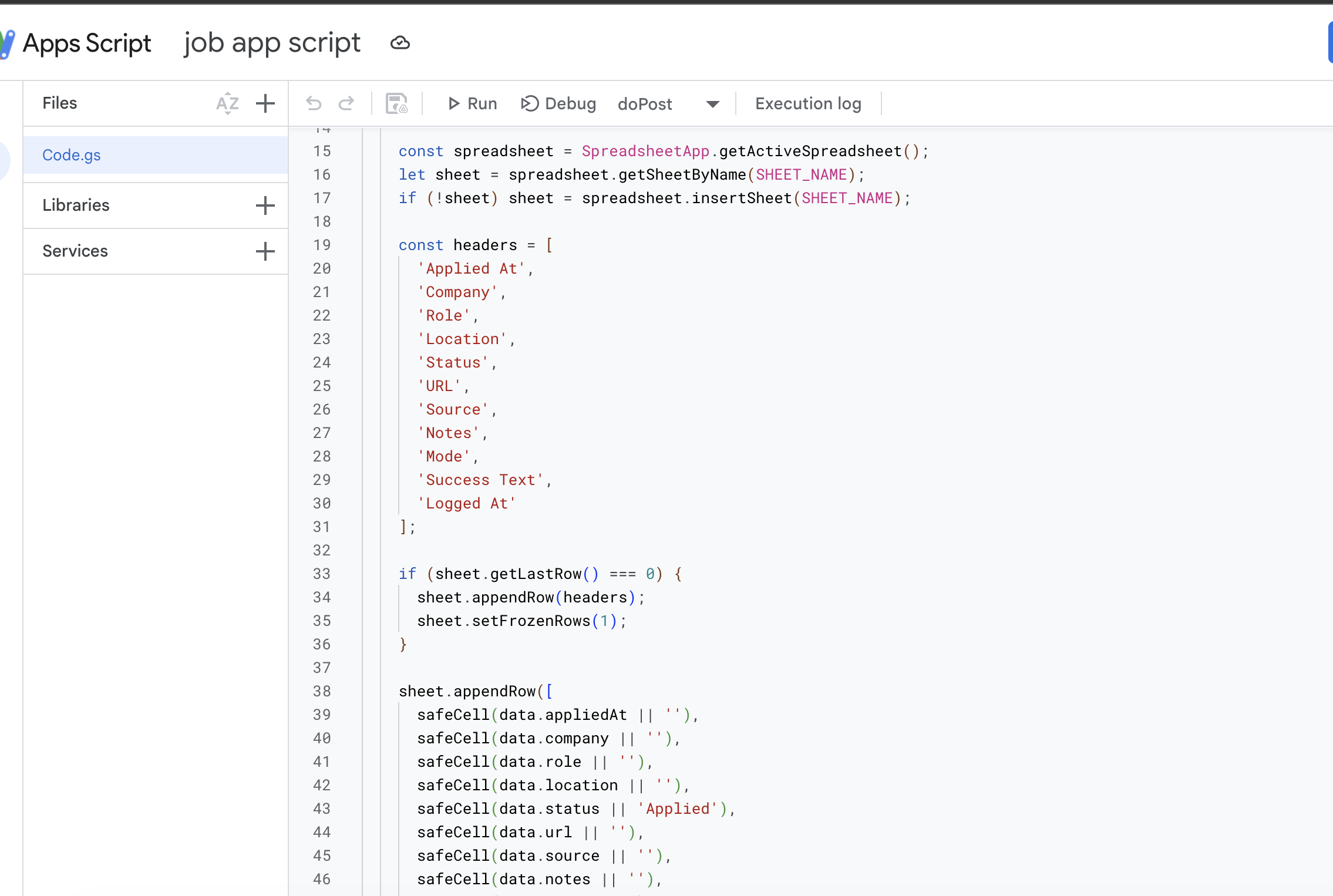
- No row collisions either. On the Sheets side, the Apps Script uses a lock before adding a row, so two logs arriving at the same time don’t trip over each other.
Behind the scenes, a Chrome Manifest V3 extension (about 1,000 lines of plain JavaScript, no framework) sends the entry to a Google Apps Script web app, which adds a new row to Google Sheets. No separate database needed! Your connection settings sync through Chrome, so they follow you to your other signed-in browsers.
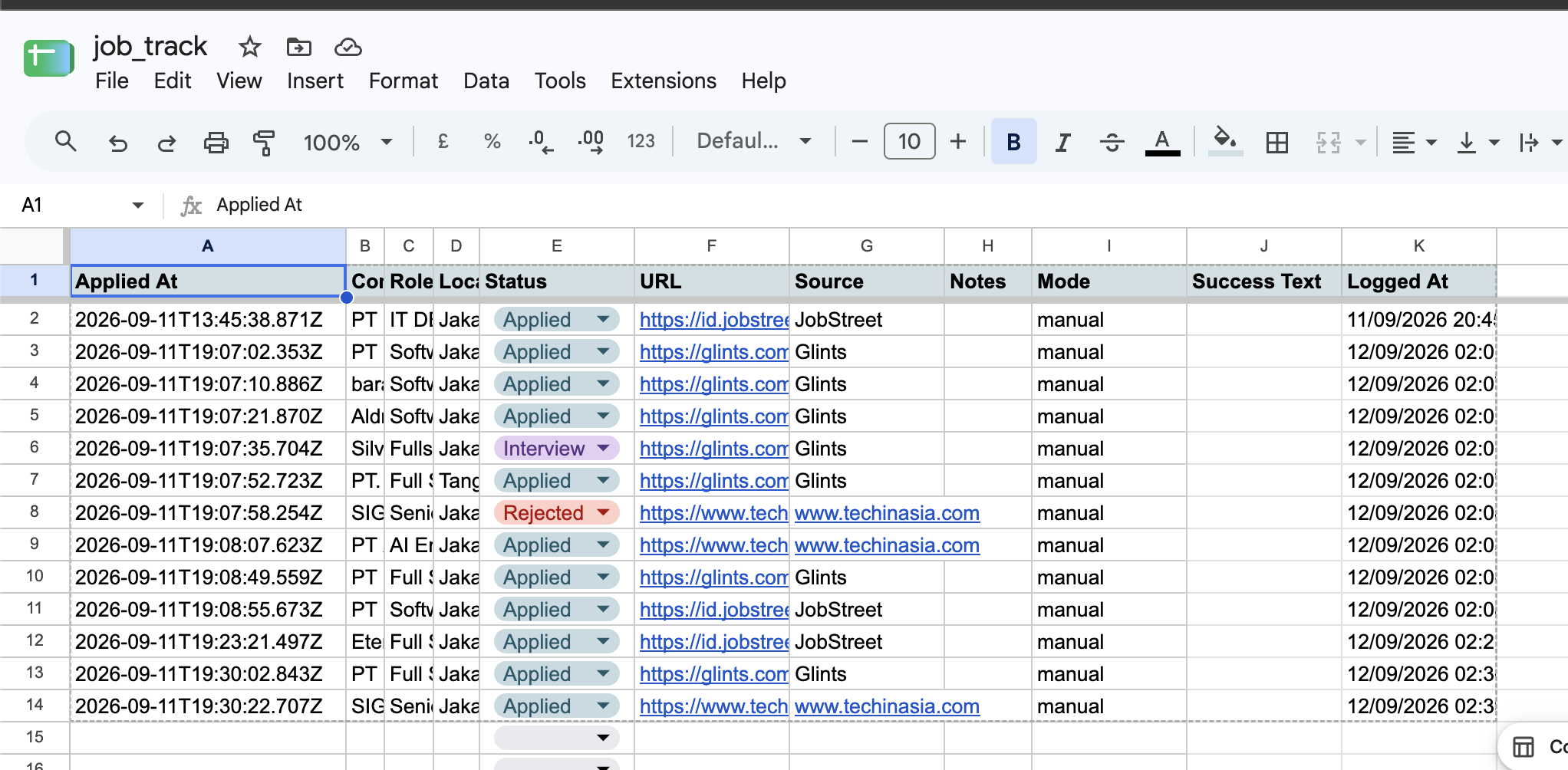
📋 What Gets Saved?
Each row includes:
- Job details: company, role, location, and URL.
- Application details: application date, status, and optional notes.
- Tracking details: source platform, manual/auto mode, any detected confirmation text, and when the row was logged.
So everything lives in one place where you can review and update progress, instead of digging through browser history and confirmation emails 📬.
🚀 Getting Started
- Create a Google Sheet and add the project’s
Code.gsunder Extensions → Apps Script. Set a long, unique shared secret. - Deploy the script as a web app the extension can reach, then copy its
/execURL. - Load the extension from its project folder via
chrome://extensions→ Developer mode → Load unpacked. - Connect it in the extension’s Options with the web app URL and shared secret. Try a manual log first, then turn on auto-detect if you like it.
⚠️ A Few Things Worth Knowing
- Auto-detect isn’t magic. Job sites change, and some confirmation screens might not be recognized. Peek at your Sheet to make sure the entry made it.
- Manual logging is your backup. On unfamiliar pages, a few fields might need a quick fix before saving.
- Permissions are kept small. The extension only asks for storage, the active tab, and scripting. Automatic page access is limited to the supported job platforms, and manual logging only touches the tab you choose.
- It’s a personal-use setup. The Apps Script endpoint uses a shared secret, not a full login system. Keep that secret private, and please don’t treat this as production-grade multi-user security.
💬 Closing
A job tracker is only useful if it’s actually up to date. Job Application Logger keeps it simple: apply for the role, capture the details, and let Google Sheets hold the record.
Less admin, more applying. Good luck out there! 🍀